
CCTV
Security camera · DVRA security camera sends a small, soft, oversharpened picture to a recorder, and the recorder plays it on a tube monitor in a back room. CCTV gives your picture that whole chain, and can photograph the monitor too, at an angle, the way someone holds a phone up to the guard's screen.
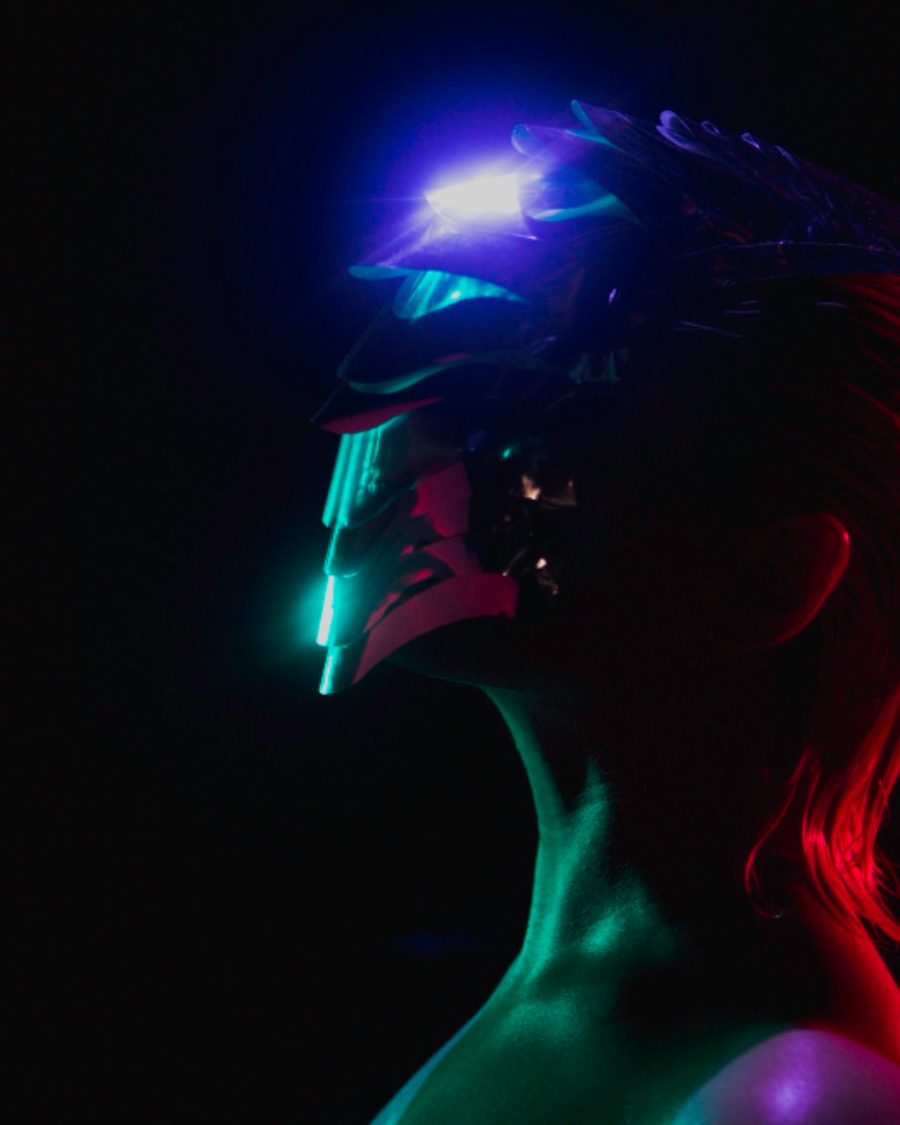
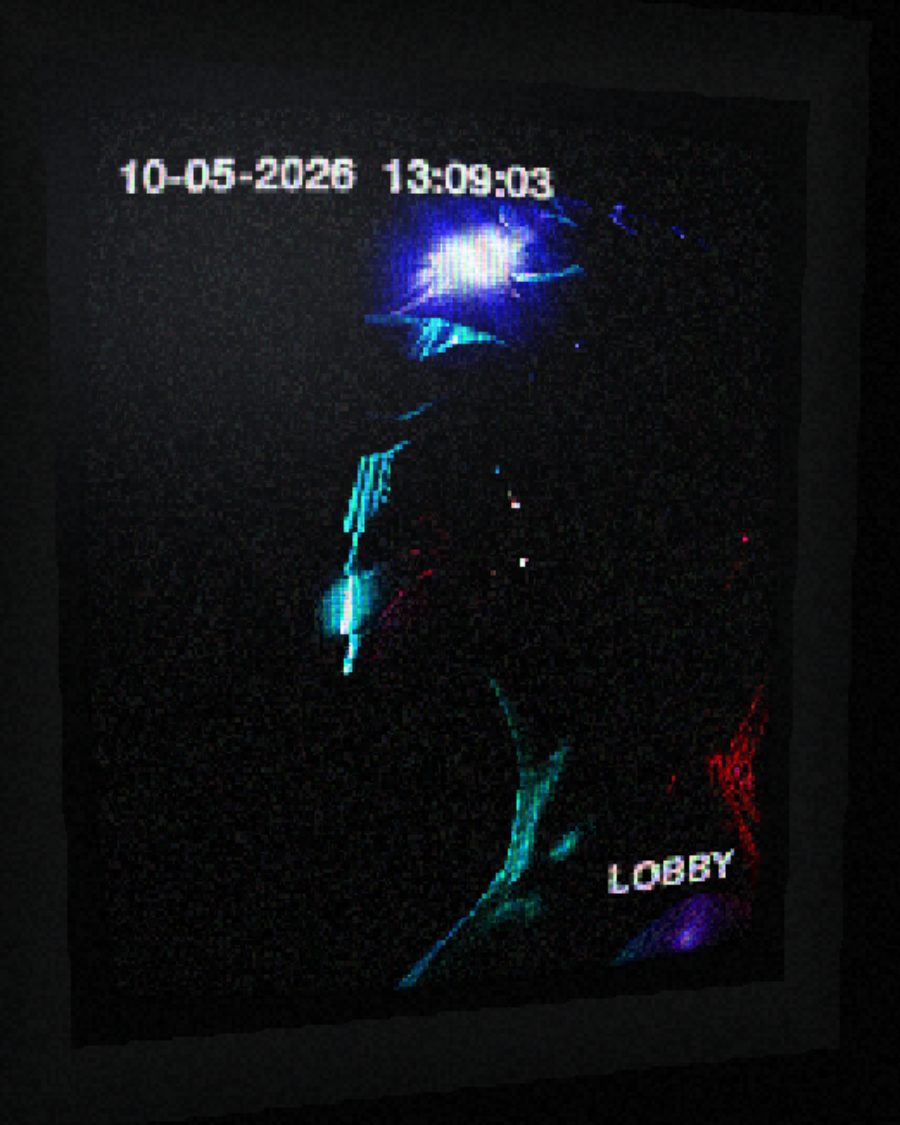
The sample with the Phone Shot preset. Drag to compare, or press Play with it to tune it live. Open as a shared look
What it's like
Think of footage on the evening news. The camera is cheap and high in a corner. Its sensor is tiny, so everything is soft, then the recorder sharpens it so hard that dark shapes get bright rims. The frame rate stutters, the time ticks in the corner, and the whole thing plays on a curved monitor with scanlines. When someone photographs that monitor, the phone's own pixels catch the scanlines and ripple them into moiré.
When to reach for it
- Evidence footage, true-crime openers and "caught on camera" moments.
- Covers and posts that should feel found, not made. Turn on Photo and tilt it.
- A night scene. Pick Night IR for black and white with glowing highlights.
- Cuts between angles. Press Switch and the feed jumps to the next camera.
How it works
The picture runs through three stages, in order. Camera samples it on a small sensor grid, softens it through the lens, and oversharpens it the way a recorder does, which leaves bright rims round dark edges. Picture and Signal shape the tones, noise and compression, and Overlay burns in the camera's name and the time. Monitor draws that signal on a tube. With Photo on, a second camera looks at the monitor from an angle. Its pixel grid samples the scanlines, and where the two grids beat against each other you get moiré.
Controls
35 controls in 8 sections, in the order Tune shows them.
Camera
- SelectSensor
CIFD1960HHD
The camera's sensor. CIF is small and blurry, D1 is the classic recorder size, 960H and HD are sharper.
- Hero knobSharpening
0 to 100 · rests at 50
The hero. How hard the recorder sharpens. Turn it up and dark shapes get bright rims.
- KnobLens
0 to 100 · rests at 30
How soft the lens is.
- KnobInterlace
0 to 100 · rests at 30
Every other line lands a little to the side, so edges comb.
- SelectFrame rate
30157.54
The recorder's frame rate. At 7.5 or 4 a moving picture stutters, frame to frame.
Picture
- SelectPicture
ColorMonoNight IR
Color, Mono, or Night IR, which is black and white with glowing highlights.
- FaderCast
-100 to +100 · rests at +40
The cast. Toward Cool is the blue of most monitors, toward Warm is old fluorescent light.
- KnobContrast
0 to 100 · rests at 45
Crushes the blacks and blows out the whites.
- KnobColor
0 to 100 · rests at 28
How much color survives.
- KnobBloom
0 to 100 · rests at 15
Bright parts bleed into their surroundings.
Signal
- KnobNoise
0 to 100 · rests at 30
Grain, finer in color, heavier at night.
- KnobCompression
0 to 100 · rests at 20
The recorder's compression. Blocks and banding grow as you turn it up.
- KnobRoll
0 to 100 · rests at 0
The picture rolls up the screen, a whole number of times per loop.
- KnobJitter
0 to 100 · rests at 10
Rows shiver sideways.
Overlay
- SelectOverlay
OffCameraCamera + timeFull
What the recorder writes on the picture. Camera shows the name, Camera + time adds a clock that ticks with the loop, Full adds a blinking REC. Set the date in the field beside it.
- SelectCamera
CAM 01CAM 02CAM 03CAM 04LOBBYGARAGEENTRANCELOADING DOCK
The camera's name. Switch moves to the next one.
- SwitchLettering
CleanBlock
Clean letters, or the blocky ones of older recorders.
Monitor
- KnobScanlines
0 to 100 · rests at 45
How dark the gaps between the monitor's lines are.
- KnobLines
200 to 600 · rests at 444
How many lines the monitor draws.
- KnobMask
0 to 100 · rests at 20
The red, green and blue stripes of the tube.
- KnobCurve
0 to 100 · rests at 30
How much the glass bulges.
- KnobGlow
0 to 100 · rests at 30
The monitor's glow round bright parts.
- KnobVignette
0 to 100 · rests at 35
Darkens the corners of the tube.
Photo
- SwitchPhoto
OffOn
Photographs the monitor. Everything below is about that photo.
- Hero knobMoiré
0 to 100 · rests at 60
The hero of the photo. How much the camera's pixels catch the scanlines. Low is a clean photo, high ripples across the screen.
- KnobCamera pixels
0 to 100 · rests at 40
The size of the camera's pixels. Bigger pixels make bigger, slower ripples.
- KnobDistance
0 to 100 · rests at 15
Steps back from the monitor, so its bezel shows.
- KnobFocus
0 to 100 · rests at 15
Defocuses the photo, which softens the scanlines and calms the moiré.
- KnobGlare
0 to 100 · rests at 25
Light reflected on the glass.
- KnobRefresh bands
0 to 100 · rests at 20
The dark bands a phone catches when its shutter and the tube disagree. They travel down the screen once per loop.
- FaderExposure
-100 to +100 · rests at 0
The photo's exposure.
Buttons
- Pulse buttonSwitch
Momentary · fires and falls back · can be recorded
Press it to cut to the next camera with a tear across the picture.
- Pulse buttonLoss
Momentary · fires and falls back · can be recorded
Press it and the signal drops to snow with VIDEO LOSS, then comes back.
Settings
- KnobAngle across
0 to 100 · rests at 50
Turns the photo left or right. Drag on the Aim screen to tilt it in both directions.
- KnobAngle up
0 to 100 · rests at 50
Tilts the photo up or down.
Presets
6 presets. Each one opens in the studio as a shared look. Add it on top of your picture, or save it to My looks.
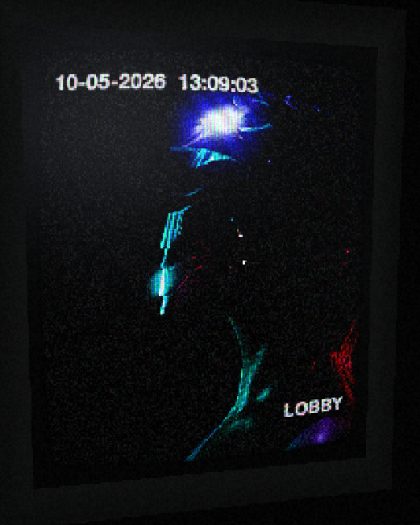 Phone ShotA phone held up to the guard's monitor: tilted, moiré across the lines, glare on the glass.02
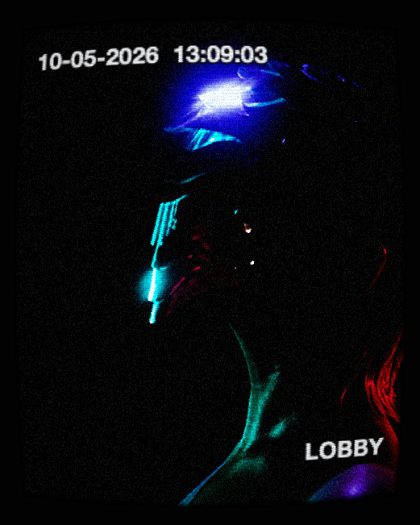 Lobby MonitorStraight on, a cool color feed with the time ticking in the corner.03
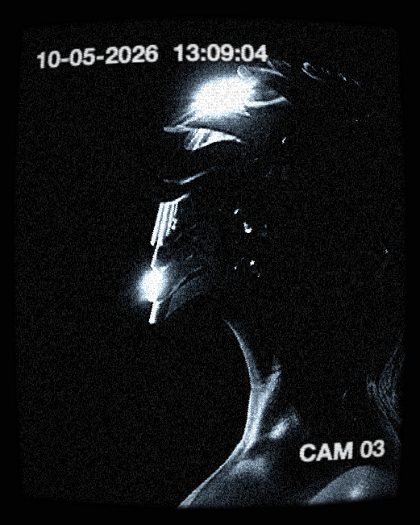 Night IRInfrared after dark: black and white, glowing highlights, heavy noise.04
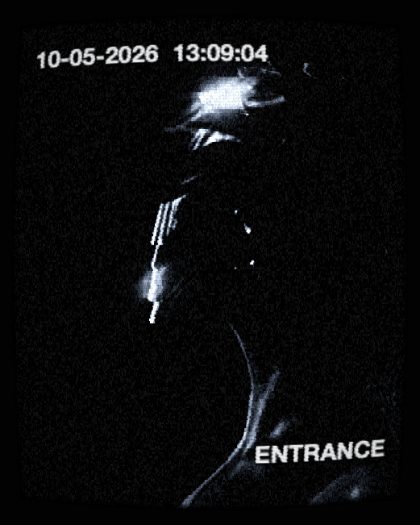 Evidence StillFour frames a second, blocky DVR compression, oversharpened edges.05
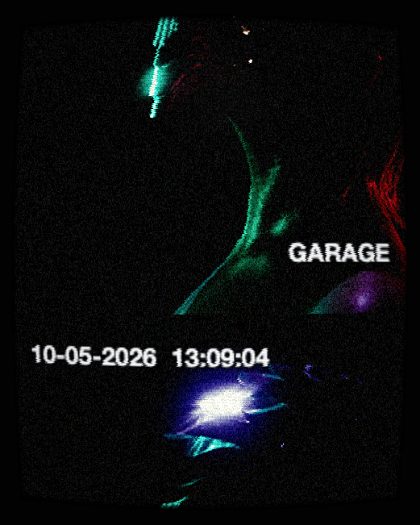 Garage CamA cheap camera in fluorescent light: green cast, rolling, jittering rows.06
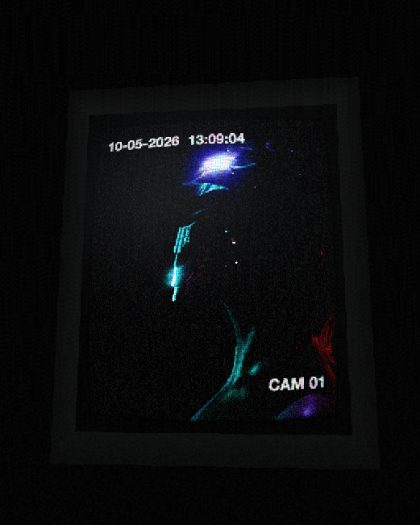 Across the RoomThe monitor photographed from a few steps back, bezel showing, angled down.