Tracker
Blob tracking · HUDTracking software finds things in a shot and follows them, drawing boxes, IDs and readouts over the picture. Tracker finds the bright, dark, moving or colored spots in your picture and draws that heads-up display on top.
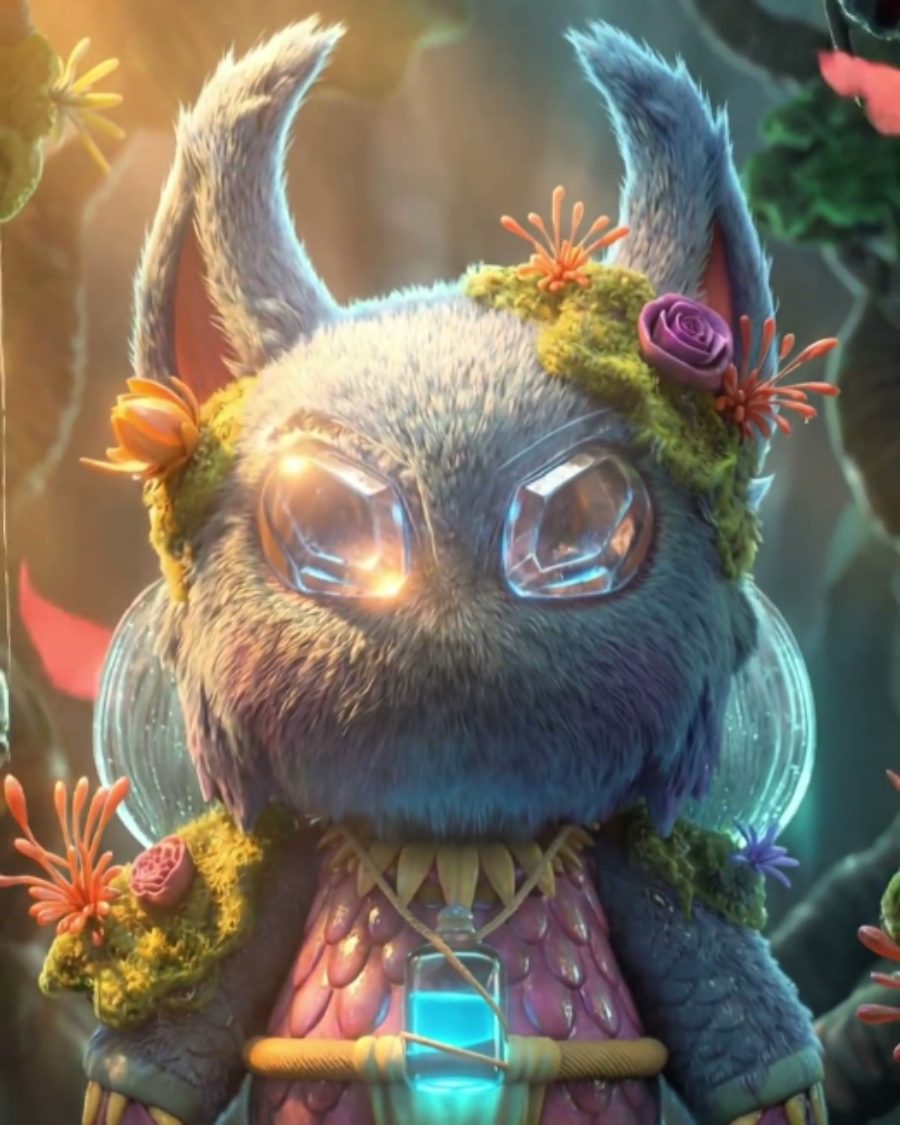
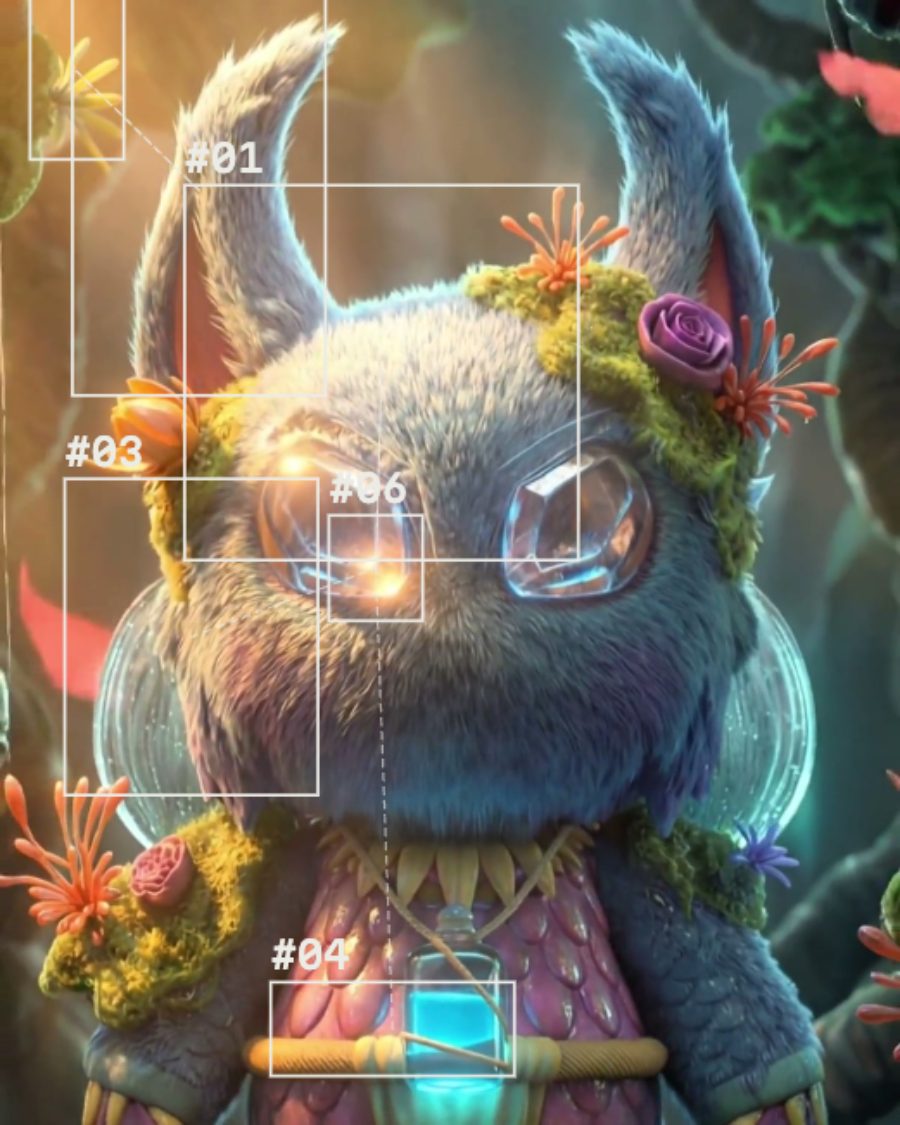
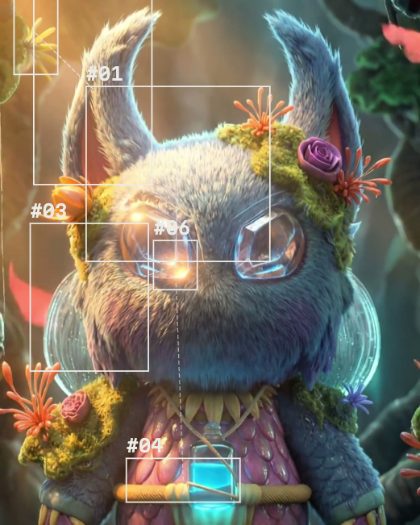
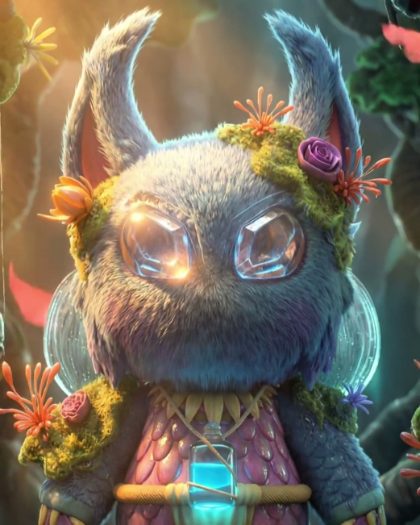
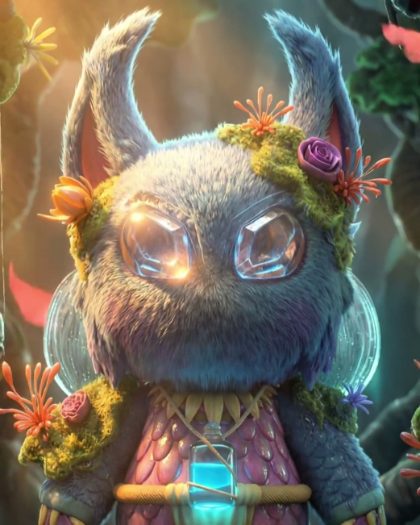
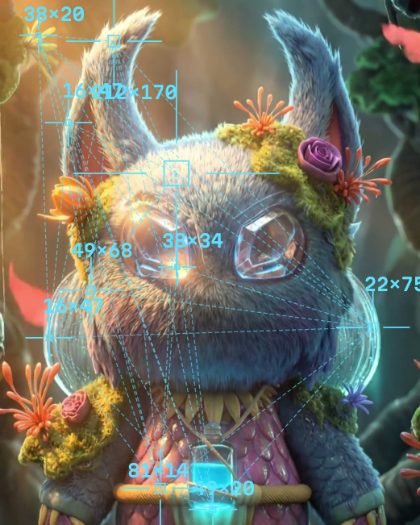
The sample with the Surveillance preset. Drag to compare, or press Play with it to tune it live. Open as a shared look
What it's like
Think of a security monitor, a wildlife camera or a sports broadcast. Every target gets a bracket and a number, coordinates tick along beside it, dashed lines join the targets, and a zoomed box picks out the biggest one. The markers hang back a beat, easing after what they follow. Tracker draws all of that, live, over your picture.
When to reach for it
- Surveillance, sci-fi and data looks for music videos and openers.
- Following lights in a night shot. Find Bright and link them all.
- Anything that moves in a video. Set Find to Motion.
How it works
Tracker looks at a small copy of each frame, about 96 cells wide, and marks every cell that is bright enough, dark enough, changed enough or close enough to the color. Touching cells become one target. Each frame it matches targets to the ones it saw before, so IDs and trails carry on. The tracks start over at the top of every loop, so the preview and the export draw the same thing.
Controls
16 controls in 3 sections, in the order Tune shows them.
Find
- SelectFind
BrightDarkMotionColor
What to look for. Bright spots, Dark spots, Motion since the last frame, or a Color.
- Hero knobThreshold
0 to 100 · rests at 55
The hero. How strict the test is. Higher finds only the brightest, darkest, strongest motion or closest color.
- Hue faderColor
0° to 360° · rests at 0°
The color to find when Find is set to Color.
- KnobMin size
0 to 100 · rests at 15
The smallest target that counts. Raise it to ignore specks.
- KnobMax
1 to 16 · rests at 6
How many targets at most, one to sixteen. The biggest win.
Draw
- SelectMarker
BracketsBoxCircleCross
How each target is marked. Corner Brackets, a Box, a Circle or a Cross hair.
- SelectLabels
IDCoordsSizeNone
The text by each target. Its ID, its Coords in pixels, its Size, or None.
- SelectLinks
OffChainNearestAll
Dashed lines between targets. Chain joins them in ID order, Nearest joins each to its closest, All joins every pair.
- SelectInsets
Off123
Up to three zoomed boxes down the right edge, each showing one of the biggest targets close up.
- KnobTrails
0 to 100 · rests at 0
A fading line behind each target, tracing where it's been.
Style
- SelectColor
WhiteGreenAmberRedCyan
The display color. White, Green, Amber, Red or Cyan.
- KnobWeight
0 to 100 · rests at 30
How thick the markers and lines are.
- KnobText
0 to 100 · rests at 35
How big the labels are.
- KnobLag
0 to 100 · rests at 30
How slowly the markers catch up. Low snaps to the target, high floats after it.
- SwitchType
MonoGrotesk
The label type. Mono reads as a terminal, Grotesk as a broadcast graphic.
- SwitchView
OverlayDetection
Overlay draws the display on your picture. Detection also tints the cells Tracker found, so you can see what it sees.
Presets
4 presets. Each one opens in the studio as a shared look. Add it on top of your picture, or save it to My looks.