
Isolate
Keep one hueColor isolation keeps one color and lets the rest of the world go grey. Isolate picks a hue in your picture, keeps it vivid, and turns everything else to stone.

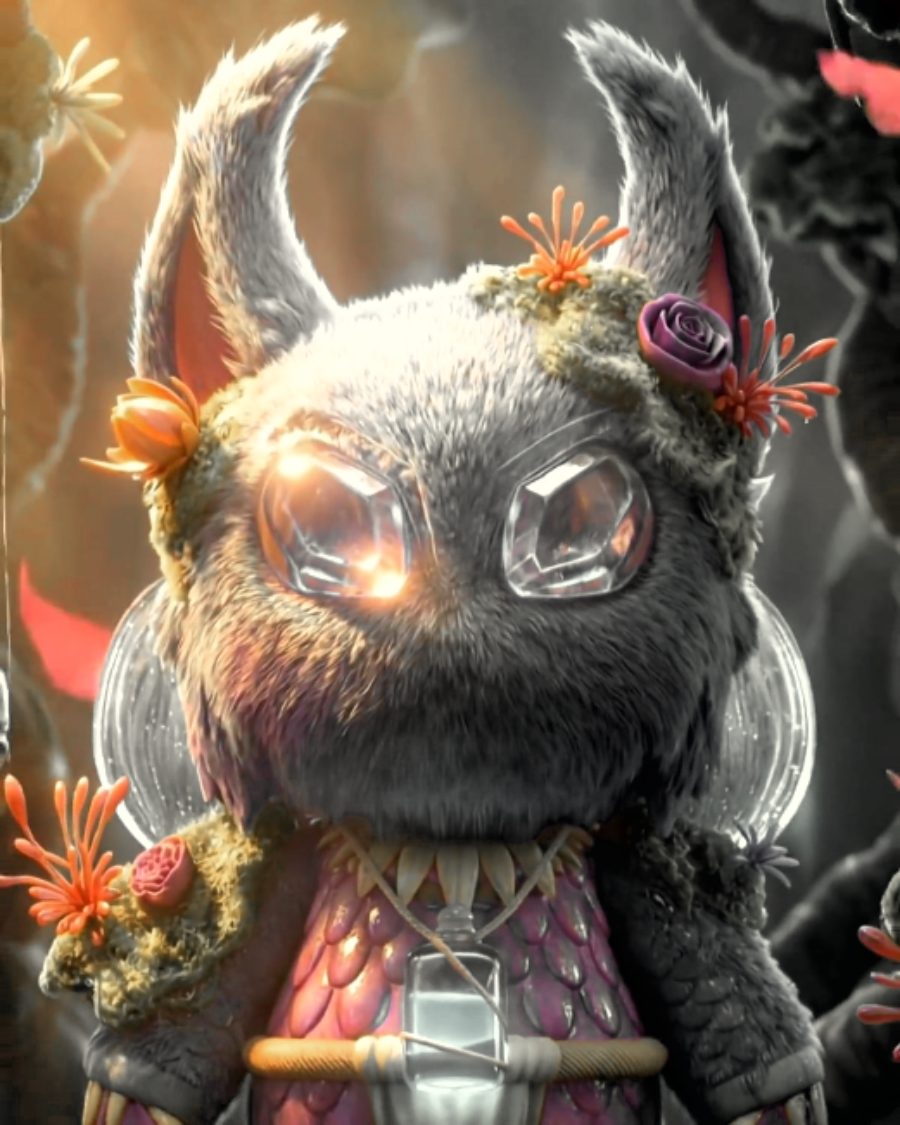
The sample at Isolate's defaults. Drag to compare, or press Play with it to tune it live. Open as a shared look
What it's like
Think of the red coat walking through a black and white film, or a yellow cab on a grey street. Your eye goes straight to the one thing still in color. Isolate does that by hue, so anything in the chosen color stays, wherever it sits in the frame.
When to reach for it
- Pointing at one thing. A red dress, a neon sign, a product in its brand color.
- Posters and covers with a single accent color.
- Moody street and night scenes where one light should carry the picture.
Controls
6 controls in 2 sections, in the order Tune shows them.
Keep
- Hue faderHue
0° to 360° · rests at 0°
The color to keep. Turn it around the wheel until your subject lights up.
- KnobRange
0 to 100 · rests at 12
How wide a slice of the wheel stays in color. Low is one exact hue, high lets neighbors in.
- KnobSoftness
0 to 100 · rests at 35
How gently the kept color fades into the grey. Low is a hard cut, high is a soft edge.
Rest
- Hero knobDesaturate
0 to 100 · rests at 90
The hero. How far the rest goes grey. Low leaves a hint of color everywhere.
- KnobContrast
0 to 100 · rests at 55
Punch in the grey part, and a little in the color you keep.
- SelectRest
NeutralConcreteSteel
The grey the rest turns. Neutral is plain, Concrete is a little warm, Steel is a little cool.