
Motion Blur
Selective · focus maskPan a camera with a runner on a slow shutter and the runner stays sharp while the street streaks behind. Motion Blur draws those streaks on your picture and keeps one spot in focus.
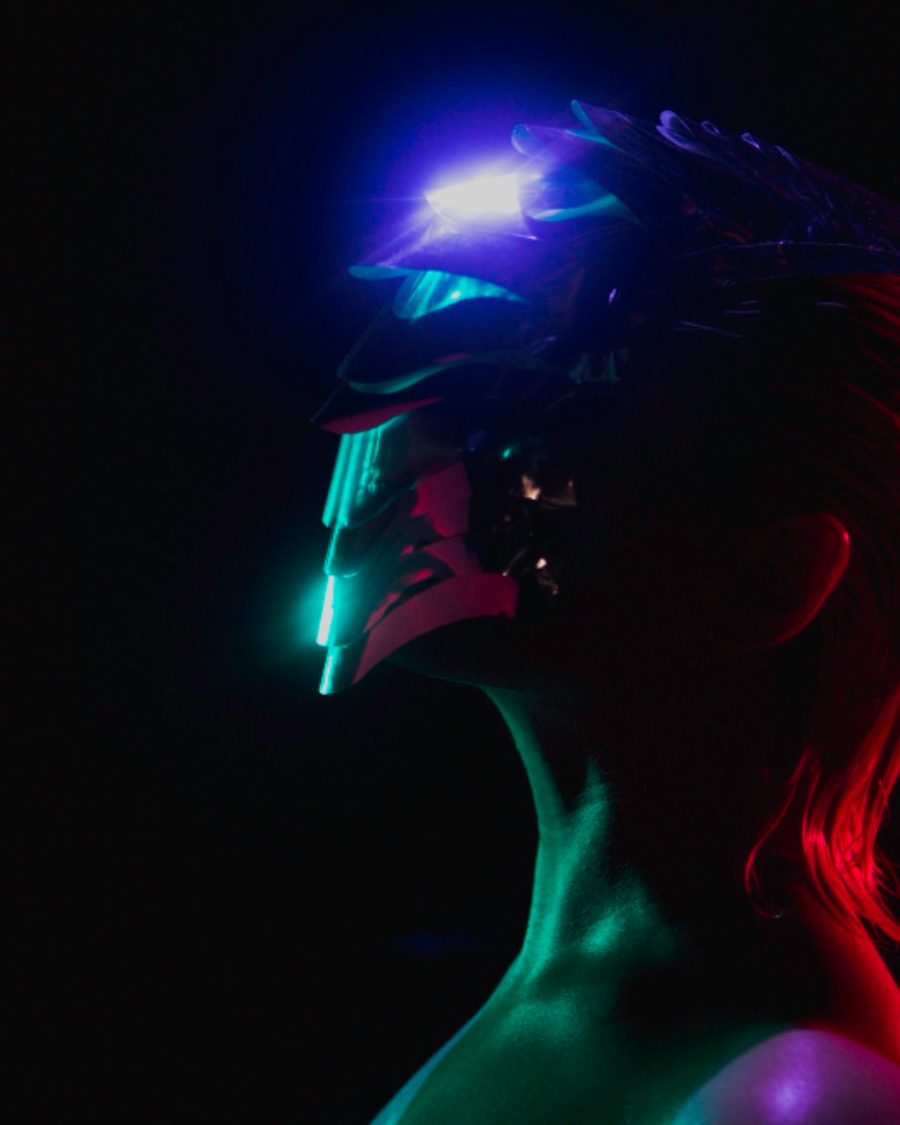
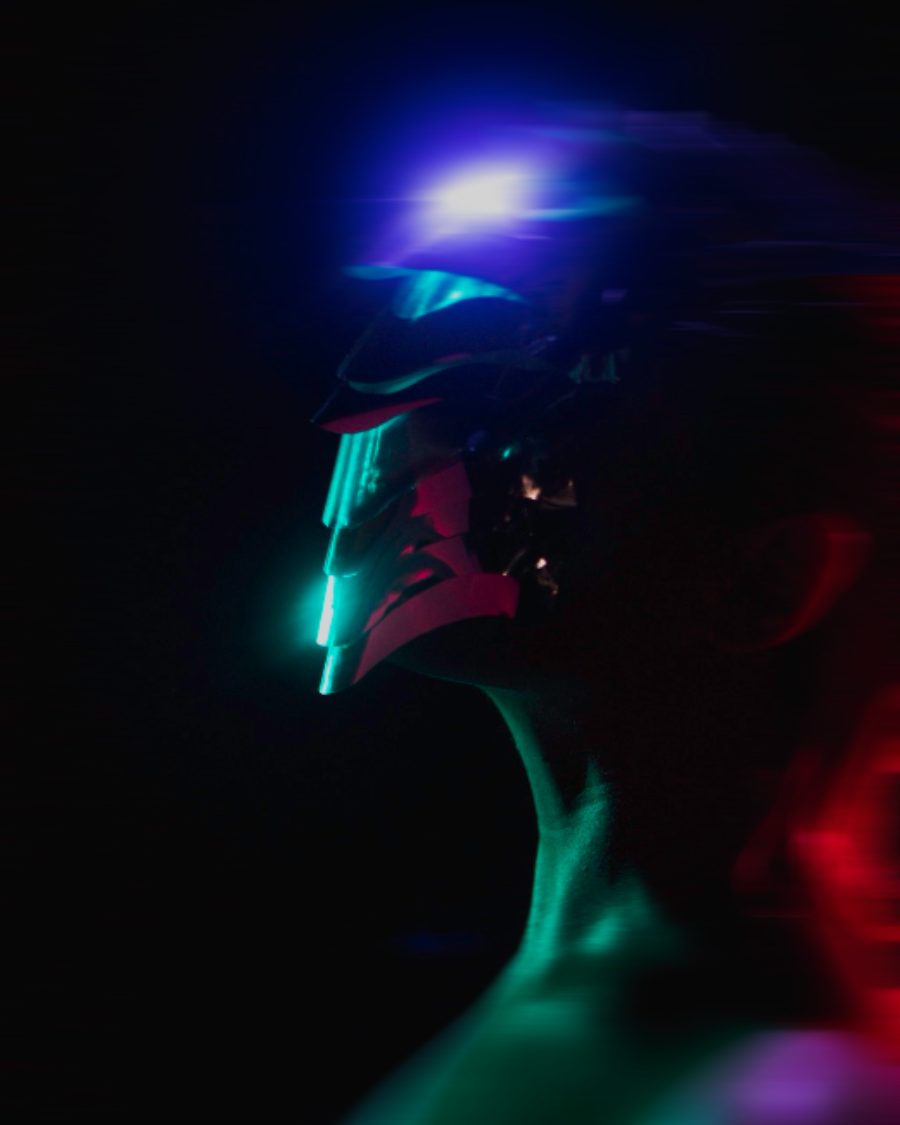
The sample at Motion Blur's defaults. Drag to compare, or press Play with it to tune it live. Open as a shared look
What it's like
A photographer swings the camera with a passing car. The car holds, the background tears into lines. Or they twist the zoom ring during the exposure and everything rushes out from the middle. Motion Blur gives you both, with a sharp spot you place where you want the eye to land.
When to reach for it
- Speed for a product, a car or a person, with the subject kept sharp.
- A zoom burst on a cover or poster that pulls the eye to one point.
- A softer, moving background behind type.
Motion Blur doesn't track what moves in your picture. You choose the direction and the spot that stays sharp.
Controls
7 controls in 3 sections, in the order Tune shows them.
Blur
- SwitchMode
DirectionalZoom
Directional streaks everything along one line, like a pan. Zoom streaks out from the focus point, like turning the zoom ring mid-exposure.
- Hero knobAmount
0 to 100 · rests at 50
The hero. How long the streaks are.
- KnobAngle
0° to 180° · rests at 0°
Which way the directional streaks run. Zoom ignores it.
Focus
- KnobFocus size
0 to 100 · rests at 30
How big the sharp spot is. At zero only a point stays sharp.
- KnobFeather
0 to 100 · rests at 40
How gently sharp turns into blur. Low is a hard edge, high is a long fade.
Settings
- KnobFocus X
0 to 100 · rests at 50
Where the sharp spot sits, across. In Zoom, the streaks fly out from here.
- KnobFocus Y
0 to 100 · rests at 45
Where the sharp spot sits, down.